The Windows 10 Start experience is a powerful hub you can customize to fit your workflow and personal preferences. From the Start menu, you can pin your favorite apps or shortcuts to create a personalized workspace — right-click an app and select pin to start to add a tile that puts that tool at your fingertips. You can also resize tiles, group them into a folder, or remove tiles you don’t use by choosing unpin. While some users are exploring Windows 11 and its updated customization options, Windows 10 still offers rich personalization features, including full-screen Start layouts, taskbar tweaks, and even command-line tweaks via PowerShell for advanced users who want deeper control. Whether you’re creating a shortcut to an important document or arranging your Start tiles for maximum efficiency, mastering the Windows 10 Start menu and customizing the Start options can make your daily tasks more intuitive and efficient.
Configure And Customize Windows 10 Start Menu
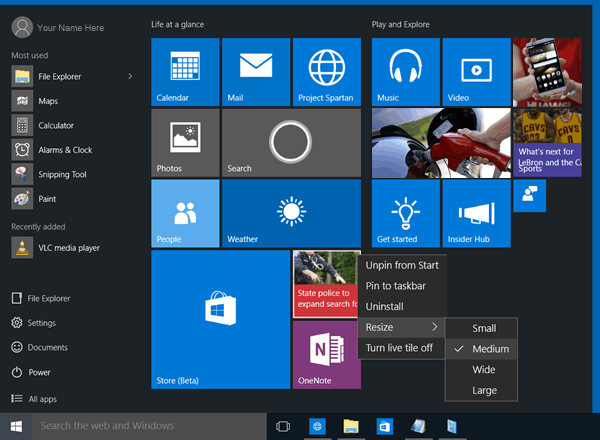
As is expected, the Start Menu, or simply Start, gives you access to your User Documents, Oft-used and pinned software and apps, File Explorer and so on. Something notably new here is that the Start now includes Live Tiles too.
You can:
1. Remove the frequent items from the Start Menu.
2. You can disable content suggestions that Microsoft may show at the top of the Start menu from time to time; mostly, it is related to Windows Store apps that Microsoft thinks you will be interested in
3. You can remove the New list by turning off the Show recently added apps group. This, however, will not prevent All Programs from showing New under the option and once you expand All Programs. The new one will still show New under the item name. The option “Show Recently Added Apps Group” only removes the folder or group that contains a list of newly added apps. The group is useful when you can’t find your programs in All Programs, but when you expand it, you will find it mighty long to get confused among the list it produces
4. From the same window, you can opt to Turn Off the list of recently opened items; remember that it is different from recently added, as the latter shows a list of recently installed programs, and the former shows a list of documents, spreadsheets, image files, sound or video files. In short, this option lets you see the list of data files, while the option mentioned in number 3 above shows the list of recently added or installed programs
5. Finally, you can get the Start menu to be shown full screen; there is no need for regular users to show the Start menu in full screen, but for those who are using tablets and mobile devices.
Let us now have a look at the Start Menu and its settings in detail.
Live Tiles & Groups
The Start now includes Tiles. You can pin Tiles to Start. If the app is programmed to display Live Tiles, you will see Live Tiles in your Start Menu too. You can pin apps, program shortcuts, files, folders and even the Drive to Start. Simply right-click on the item and select Pin to Start. Drag and drop them around to arrange them in Groups and give the Groups useful names.
The typical context menu for each Tile would include:
Unpin from Start
Pin to taskbar
Uninstall
Resize – Small, Medium, Wide, Large
Turn Live Tile off
You can move the tiles, resize them and even group them. You can move items from the left side to the right side of Start and display them as Tiles. You can also uninstall apps from the Start menu itself, using its context menu.
Give It The Classic Windows 7 Look
If you wish, you can right-click on each Tile and unpin it to make the Start look compact, giving it the classic look.
Resize Start Or Make It Display Full-Screen
You can resize the Start Menu by dragging its right and top edges. You can even display the Start Menu in full screen, via Settings > Personalization > Start.
Most Used Programs
The Start display the Most used programs. This gives you easy access to apps and software that you use frequently. But if you wish, you can remove this Most Used list.
Recently Added Software & Apps
If you installed new apps or software, they would get listed here.
Content Suggestions
Start will also recommend apps and content to you, which it thinks may interest you. However, you can disable this feature if you find it irritating, via Settings > Personalization > Start.
Quick Navigation To The Apps List
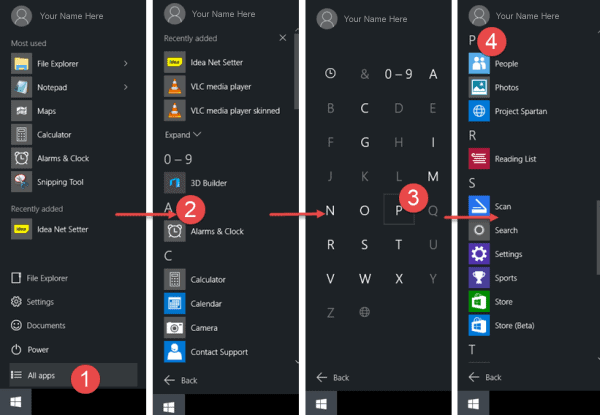
Open Start, click on All apps. Next, click on any alphabet – say A. You will see the alphabet displayed. Click on one of them, and you will be taken to the apps starting with that alphabet.
Tweak Start Menu Properties
Right-click on the Windows 10 taskbar and select Properties. Under the Start Menu tab, you will see a Customize button. Click on it to open the Customize Start Menu box. Here you will be able to customize how links, icons and menus look and behave on the Start Menu. You can add system items and disable or enable context menus and the drag-and-drop function. This box offers you a lot of options to customize the Start Menu in Windows 10. Pin any system setting to the Start!